Grab it. Paste it anywhere.
Drag over anything on screen: it is already pasted into ChatGPT, Claude, a terminal, Teams, Discord, whatever.
One gesture, no detour
Ctrl + Alt + one gesture. No tool to open, no file to save, no window to hunt for.
Show that to your colleague
Hand it to your AI agent
Game on one screen, the other dark
Keep it for later
Every shortcut
Ctrl + Alt + a letter, or the mouse alone.
Capture and paste
Screen control
Power
Go further
Windows shortcuts that pair well with TOMS
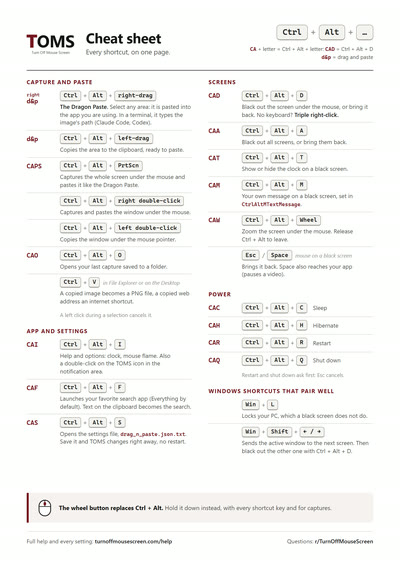
The printable cheat sheet
Every shortcut on one A4 page, with its short name: CAD for Ctrl + Alt + D, CAW, CAF... Print it, keep it by your keyboard.
Open the PDFFull help
Everything TOMS does, in detail. And everything you can tune: TOMS reads how it works from a single file, drag_n_paste.json.txt. Every name in red on this page is an entry of that file: change its value, save, and TOMS works differently, instantly, no restart.
Capture and paste
Ctrl+Alt+right-dragThe Dragon Paste
Select an area: as soon as you release, it is pasted into the active app (ChatGPT, Word, Teams, your browser, File Explorer...). If the app cannot take an image, the capture is saved as a PNG in the toms folder on your Desktop (or on the Desktop), as if you had used the left button.
During the selection you can release Ctrl + Alt. Then the selection can be adjusted pixel by pixel with the arrow keys, and if you hold the space bar you can move it.
Ctrl+Alt+left-dragCopy an area
Select an area: as soon as you release, it is copied to the clipboard, without pasting. Ctrl + V in an app pastes the image; in File Explorer or on the Desktop, it creates a PNG file.
During the selection you can release Ctrl + Alt. Then the selection can be adjusted pixel by pixel with the arrow keys, and if you hold the space bar you can move it.
Ctrl+Alt+PrtScnCapture the whole screen
Captures the whole screen under the mouse, with the same paste behavior as the Dragon Paste.
Ctrl+Alt+right double-clickCapture and paste a window
Right double-click anywhere in a window, title bar included: TOMS captures the whole window and pastes it like the Dragon Paste, right on the second click, into the app you were working in. With no app to paste into, the capture is saved in the toms folder.
Ctrl+Alt+left double-clickCopy a window
Left double-click anywhere in a window, title bar included: TOMS copies the whole window to the clipboard, without pasting, like the left-drag. Ctrl + V in an app pastes the image; in File Explorer or on the Desktop, it creates a PNG file.
Ctrl+Alt+OOpen the last capture
Opens the last capture TOMS saved to a folder: the Desktop, the toms folder, a meeting folder, or the File Explorer folder you pasted it in. A capture that stayed on the clipboard or was pasted into an app does not count.
If Photos is your default viewer, its previous / next arrows browse the other images of the folder, as when you open it from File Explorer. If ImageAppThatOpensDnPImageOnNotifications is set, that app opens it.
Paste a capture into a terminal (AI agents)
A terminal cannot take an image. So in Windows Terminal, PowerShell or cmd, the Dragon Paste saves the capture as a PNG and types its path at the prompt, in quotes if it contains spaces. Ideal for Claude Code, Codex or any command-line AI agent: describe the problem, Dragon Paste the area in question, press Enter.
Right click in the terminal: if the clipboard holds an image (copied with Ctrl + Alt + left-drag, Win + Shift + S...), its path is what gets pasted. Copied text is pasted as is.
Which terminals do this is set by PasteDnPCachedImageAsPath (see "Per-app paste rules").
The pasted path stays valid for 30 days: the capture is kept in the TOMS temporary folder. Set the duration with DnPCacheMaxAgeDays, within DnPCacheMaxSizeMB (90 MB by default, the oldest go first).
Where captures go
A capture that is not pasted into an app is saved in the first Desktop folder whose name starts with "toms" (TOMS creates one at install), otherwise on the Desktop. A duplicate gets a number, separated by DuplicateFileSuffixSeparator.
Meeting folders: create on the Desktop, or in the toms folder, a folder named like toms_2026_01_18_15_47. Captures then go to the most recent dated folder; after MeetingsDateHourGap hours without a capture (3 by default), TOMS creates a new one next to it, dated now. Your captures end up sorted by meeting.
Notifications and destination folders
After a capture is saved as a file, a Windows notification shows it (ShowDesktopPasteNotification). Click the image to open it with ImageAppThatOpensDnPImageOnNotifications (empty: your default viewer; or mspaint.exe, Photoshop, Paint.NET, any image viewer or editor), or use its buttons: open the folder, move to the Desktop or to the toms folder.
List up to 5 folders in AlternativeTargetFolders: each one becomes a "Move to ..." button on the notification.
Per-app paste rules
Under Apps, each executable ("teams.exe", "chrome.exe"...) has its own Dragon Paste rule; DEFAULTS covers the others:
- AllowPaste: paste into this app (
false= save as a file instead). - ClickBeforePaste: click the input box before pasting (chat apps, browsers).
- ShowNotification: also show the notification after a successful paste.
- PasteAsPng: paste a PNG file rather than an image.
- PasteDnPCachedImageAsPath: paste the PNG file path as text, for terminals and command-line tools (on for cmd, PowerShell, Windows Terminal).
Paste an image or a link in File Explorer
With TOMS running, copy an image from any app: paste it in File Explorer or on the Desktop and it becomes a PNG file. Copy a web address: it becomes an internet shortcut.
Screens
Ctrl+Alt+DBlack out the screen under the mouse
The screen under the mouse turns black; the same shortcut, or a simple click on it, turns it back on. Nothing is powered off: your apps and your session keep running.
No keyboard: a triple right click does the same (inactive during a fullscreen game).
Ctrl+Alt+ABlack out all screens
Every screen turns black; the same shortcut turns them back on.
Fullscreen games
A game in borderless mode, or in the default fullscreen of Windows, keeps the focus while you black out the other screen or grab an area with Ctrl + Alt + drag.
A game forced into exclusive fullscreen (fullscreen optimizations disabled in its .exe properties) owns its whole screen: the black screen can't cover it, a capture of that screen comes out black, and blacking out the other screen may take the focus away from it. Use the game's borderless mode instead.
To stop Ctrl + Alt freezing the screen over a game: DisableDnPOverFullscreenGames.
Esc SpaceBring a black screen back from the keyboard
Mouse over a black screen: Esc turns it back on.
Space turns it back on too, and the key still reaches your app (handy to pause a video). Press Space again within 2 seconds and the screen goes black again.
If a video plays fullscreen on another screen, these keys go to the video and the black screen stays.
Windows stay off black screens
A window that opens on a black screen, or that you bring back from the taskbar, is moved automatically to a lit screen.
Ctrl+Alt+WheelZoom
Zooms the screen under the mouse.
Clock, message and flame
Ctrl+Alt+TClock on a black screen
Shows or hides the date and time in red on a black screen. Hide it and show it again right away: it moves to the next black screen.
Settings: ClockForceCulture (language and format), ClockOnMouseMove (brief clock when the mouse crosses a black screen).
Ctrl+Alt+MCustom message on a black screen
Shows or hides your message on a black screen, in place of the clock (one replaces the other). Set the text in CtrlAltMTextMessage.
Mouse flame
When the mouse moves after a while, a small flame lights up on the pointer so you spot it at a glance, then goes out in a wisp of smoke. Turn it on in the Ctrl + Alt + I window. It follows your moves, a click blows it out, and it stays out of your captures. With all your screens black it lights up as soon as the mouse moves, with no wait, and goes out when the mouse stops; a Ctrl + Alt + drag made while it burns keeps the flame and the pointer. Idle time needed: MouseIdleFlameOrEchoAfterSeconds. How long it burns: MouseIdleFlameSeconds. Prefer a black circle? Set MouseIdleFlameAlternative to "echo"; MaxEchoCircleCapPxSize sets its maximum size.
Power
Ctrl+Alt+C H R QSleep, hibernate, restart, shut down
- C: sleep, immediately.
- H: hibernate, immediately. To turn it off: DisableCtrlAltHHibernate.
- R: restart, after confirmation (Esc cancels).
- Q: shut down, after confirmation (Esc cancels).
App and launcher
Ctrl+Alt+FLaunch your favorite search app
Launches the app set in AppToOpensOnCtrlAltF (Everything by default). With Everything, if the clipboard holds text, it is used as the search.
Ctrl+Alt+IHelp and options window
A reminder of the shortcuts, and two options: the clock on a black screen (like Ctrl + Alt + T) and the mouse flame. It also opens with a double-click on the TOMS icon in the notification area; a right click on that icon offers Options and Exit.
The wheel button replaces Ctrl + Alt
Hold the wheel button down (middle click) instead of Ctrl + Alt: with every shortcut key (D A T M I O F S C H R Q, PrintScreen) and for drag and double-click captures. Held for a quarter of a second, it freezes the screen like Ctrl + Alt, except in a fullscreen game.
Starts with Windows
TOMS starts when you sign in and stays quietly in the notification area. To turn this off: Windows Settings > Apps > Startup.
The settings file
Ctrl+Alt+SOpen and edit drag_n_paste.json.txt
Ctrl + Alt + S opens drag_n_paste.json.txt in your text editor. This file drives TOMS: changing a value really changes how the app works. Save, and the change applies right away.
The file is JSON: keep the quotes around text, write true or false, and use / in file paths. TOMS fixes common mistakes by itself (single backslash in a path, doubled quotes); if the file gets damaged, it repairs it and keeps every value it can still read. Delete the file and restart TOMS to go back to the original settings.
Every entry, with its original value:
- CtrlAltMTextMessage "Turn Off Mouse Screen"
- The message shown by Ctrl + Alt + M on a black screen.
- ClockOnMouseMove false
true: moving the mouse over a black screen shows the clock there for one second, then it fades out.- ClockForceCulture ""
- Clock language and format:
"fr","US","fr-FR","en-US"... Empty = the Windows ones. - UiLanguage ""
- Language of the TOMS windows. Empty = the Windows language. Takes
"es","French","Deutsch"... like ClockForceCulture. Windows opened after the change use it. - AppToOpensOnCtrlAltF "C:/Program Files/Everything/Everything.exe"
- The app launched by Ctrl + Alt + F: an exe name (
"notepad.exe") or a full path. Empty = nothing. - ImageAppThatOpensDnPImageOnNotifications ""
- The app that opens a capture when you click its notification or with Ctrl + Alt + O (
"mspaint.exe"or a full path). Empty = the Windows default app. - LastTomsImagePath ""
- Written by TOMS: the path of the last capture saved to a folder, the one Ctrl + Alt + O opens again. No need to change it.
- ShowDesktopPasteNotification true
- Shows a notification when a capture is saved to the Desktop or to the toms folder.
- AlternativeTargetFolders []
- Up to 5 folders, for example
["D:/Projects", "C:/Users/me/Pictures"]: each one becomes a "Move to ..." button on the notification. - MeetingsDateHourGap 3
- Hours without a capture before TOMS opens a new dated folder (see "Where captures go").
0= off. - DuplicateFileSuffixSeparator " #"
- What separates the file name from the duplicate number:
capture #01.png. Other common choices:"_","-". - DnPCacheMaxAgeDays 30
- Number of days TOMS keeps a capture in its temporary folder (
%TEMP%\TOMS_png_temp_files_to_be_pasted_cache), for example the one whose path it typed into a terminal: that path stays valid all this time. After that, the capture is deleted from this folder. - DnPCacheMaxSizeMB 90
- Maximum size of this temporary folder, in MB: beyond it, the oldest captures are deleted first.
- MouseIdleFlameOrEchoAfterSeconds 180
- How many seconds the mouse must stay still before the flame lights up on the next move.
- MouseIdleFlameAlternative "flame"
- What signals the mouse when it moves after a while: a small flame, or
"echo"for a black circle. - MouseIdleFlameSeconds 0.7
- How long the flame burns, in seconds, before it shrinks and goes up in smoke.
- MaxEchoCircleCapPxSize 0
- Maximum radius, in pixels, of the black circle.
0= automatic. - DisableDnPOverFullscreenGames false
true: over a fullscreen game, Ctrl + Alt and the wheel button no longer freeze the screen or start a capture. Keyboard shortcuts and zoom keep working. TOMS recognizes games from a list: a lesser-known game may slip through.- DisableCtrlAltHHibernate false
true: Ctrl + Alt + H no longer hibernates the PC, a message says so instead.- SnapSelectionToWindowEdges true
true: during a capture, the corner of the selection lands on the edge of a nearby window.- ShowSelectionSize false
true: the size of the image is shown next to the pointer during a capture.- DEFAULTS
- Dragon Paste behavior in apps not listed under Apps: AllowPaste (
false= the capture is saved as a file instead of pasted), ClickBeforePaste, ShowNotification. - Apps
- One rule per executable, for example
"chrome.exe": { ... }, see "Per-app paste rules". - Comment
- The reminder at the top of the file. It has no effect.
Need help?
- Questions, bugs, ideas: ask on r/TurnOffMouseScreen. The developer answers there as u/DragonsPaste, and every answer helps the next person.
- Refunds are handled by Microsoft: request one from your Microsoft order history.
- Press, partnerships, anything private: contact@turnoffmousescreen.com
Copies of TOMS have started appearing on the Store. This is the original application, created and maintained by Cedric D Designs, the only official listing.
Ctrl + Alt + D visually blacks out the display but does not lock your Windows session. Use Win + L to secure your PC.
- It collects nothing. No account, no telemetry, no ads, no personal data.
- It records nothing. TOMS listens to the keyboard and mouse only to recognize its shortcuts and gestures: what you type is never stored. A capture exists only when you make one, and it lands where you can see it.
- It connects to nothing. No server, no cloud, nothing sent over the internet. The Microsoft Store handles purchase, license and updates.
- It changes nothing. Your Windows settings, screens, power options and apps stay exactly as they are: TOMS only adds new possibilities. Quit it and your PC works just as before.
TOMS doesn't, and never will, do any of these. It is a simple, lightweight complement to Windows and your other utilities, and that's it.